
THE SHORT VERSION
- Review wording before spending time on the style.
- Keep each caption aligned with the speech.
- Watch the final captioned export with sound on and off.
Choose a clip or the complete recording
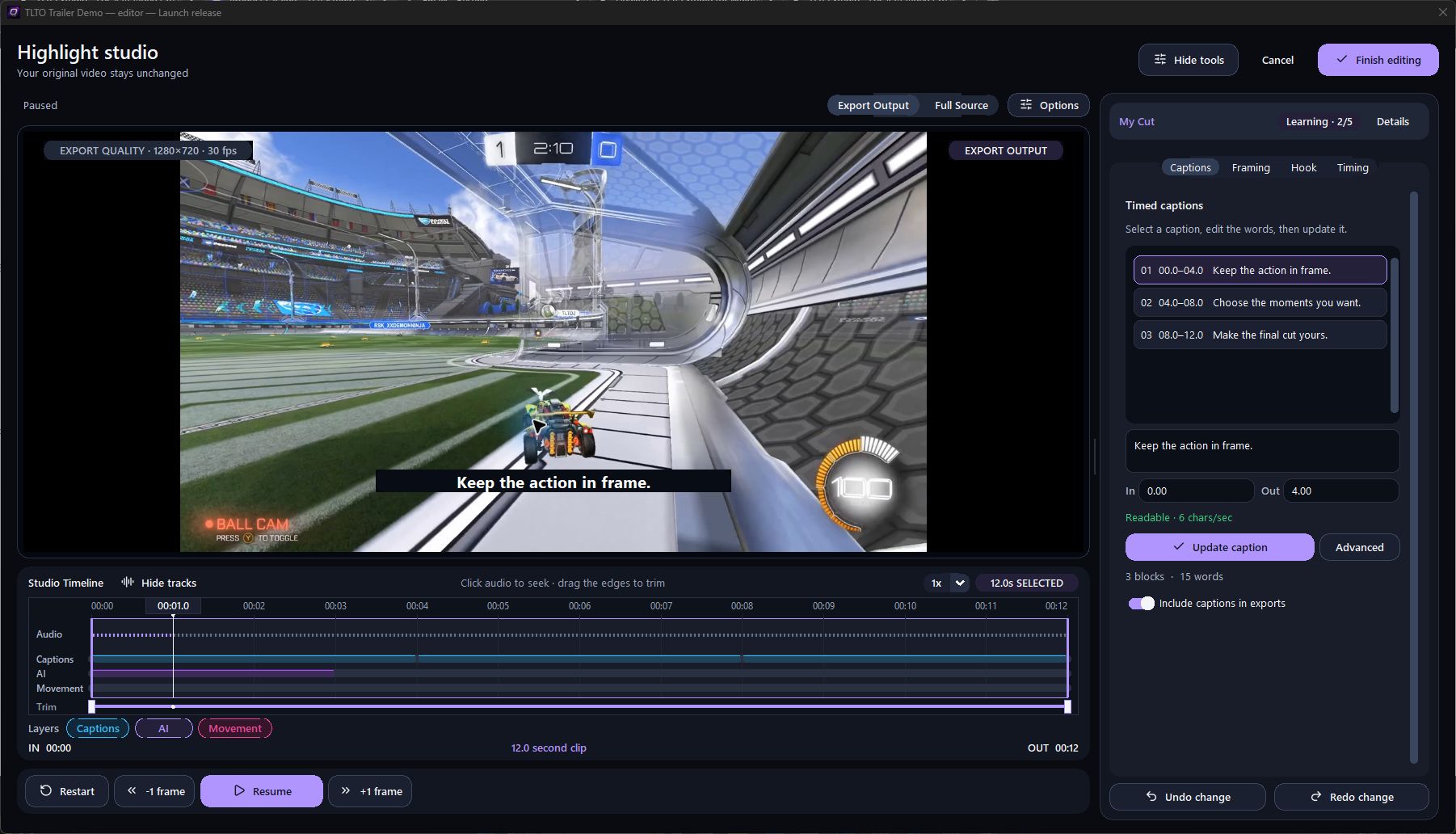
For a highlight, enable CAPTIONS before analysis, then open Preview clip and the Captions tab. This guide's screenshot shows that clip workflow.
To caption a whole recording without cutting it, open Caption a video in the sidebar and select Choose video. This Pro workflow preserves the video's full duration rather than creating a highlight edit.
Give transcription the clearest speech
If you have a multi-track recording, select a clean microphone or spoken-audio track for captions. For clips, open Audio tracks → Manage; in Caption a video, use Manage audio tracks. Keep the sounds your audience needs selected separately for export.
In the full-video caption workflow, choose Smart, Precision or Fast under TRANSCRIPTION. Smart balances turnaround with targeted rechecking when enhanced models are available; Fast is single-pass; Precision is intended for more difficult speech. None removes the need to check the result.
Correct the words in context
For a clip, select a timed caption, edit its words and choose Update caption. Listen to the nearby speech rather than guessing from the text alone. Pay particular attention to names, numbers and short shouted phrases.
For a full video, Export captioned video first prepares the transcript and opens Watch, check and correct. Use Search captions… to find recurring terms, edit a line and choose Apply correction. The final render comes after this review.
Check timing, placement and readability
In clip review, the In and Out controls let you adjust the selected caption's timing. Avoid displaying a line before it is spoken or leaving it on screen after the next speaker starts.
Use the caption style controls to choose a readable font, colour, outline and placement. In Caption a video, Edit style opens Design your captions. Make sure words do not cover the score, face or important action, especially when a landscape recording becomes vertical.
Export a reviewed copy
For clips, keep Include captions in exports selected, save your edits and export the chosen highlights. In full-video transcript review, choose Export video when you are happy with the wording.
Watch the finished file. Check one quiet section, one energetic section and any corrected names. Captions are burned into this exported copy, so return to the project and export again if you need to change them. Your original recording remains unchanged.
Before you post
- Caption tools, including Caption a video, require Pro.
- The full-video caption output menu offers Source / Auto, 1080p and 720p; it does not have a separate 4K button.
- Transcription runs on your PC. Internet is still used for licensing, updates and optional verified model downloads—not to upload your footage.
Try the layout before editing.
Use our free browser caption previewer to explore text size, colours and line breaks. It is a layout aid, not a transcription service or an exact preview of TLTO exports.
Try the free caption previewer ↗YOUR FOOTAGE. YOUR FINAL SAY.
Put the workflow to work.
Explore TLTO for Windows and choose the tools that fit your next video. Read the installation notice before downloading.